
IT Asset Policy Generator

How to Use allwhere’s IT Policy Generator
1. Input Company Information and Work Model
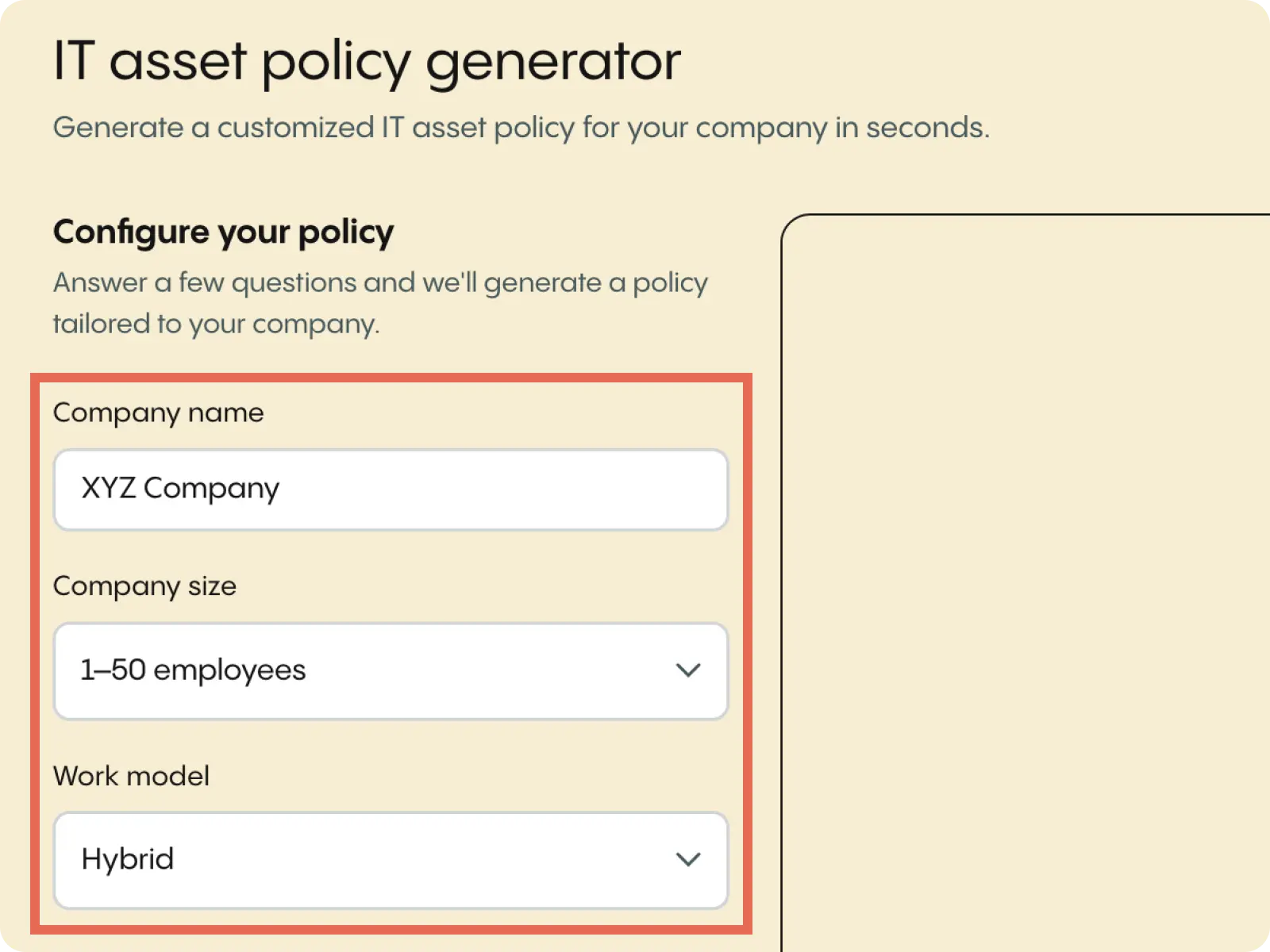
Start by filling out the first three fields of the asset management policy template, including Company Name, Company Size, and Work Model.
For Company Size, you will choose an employee range based on the size of your company, with the following four options:
- 1 - 50 employees for small companies
- 51 - 200 employees for smaller mid-sized companies
- 201 - 1,000 employees for larger mid-sized companies
- 1,000+ employees for enterprise companies
For Work Model, there are three options: fully remote, hybrid, or in-office.
Choose fully remote if 100% of your employees work from home 100% of the time. Choose in-office if 100% of your employees work on-site 100% of the time. Otherwise, if there’s a mix of remote and in-office, choose hybrid.
2. Select Device Ownership and the Types of Devices You Use
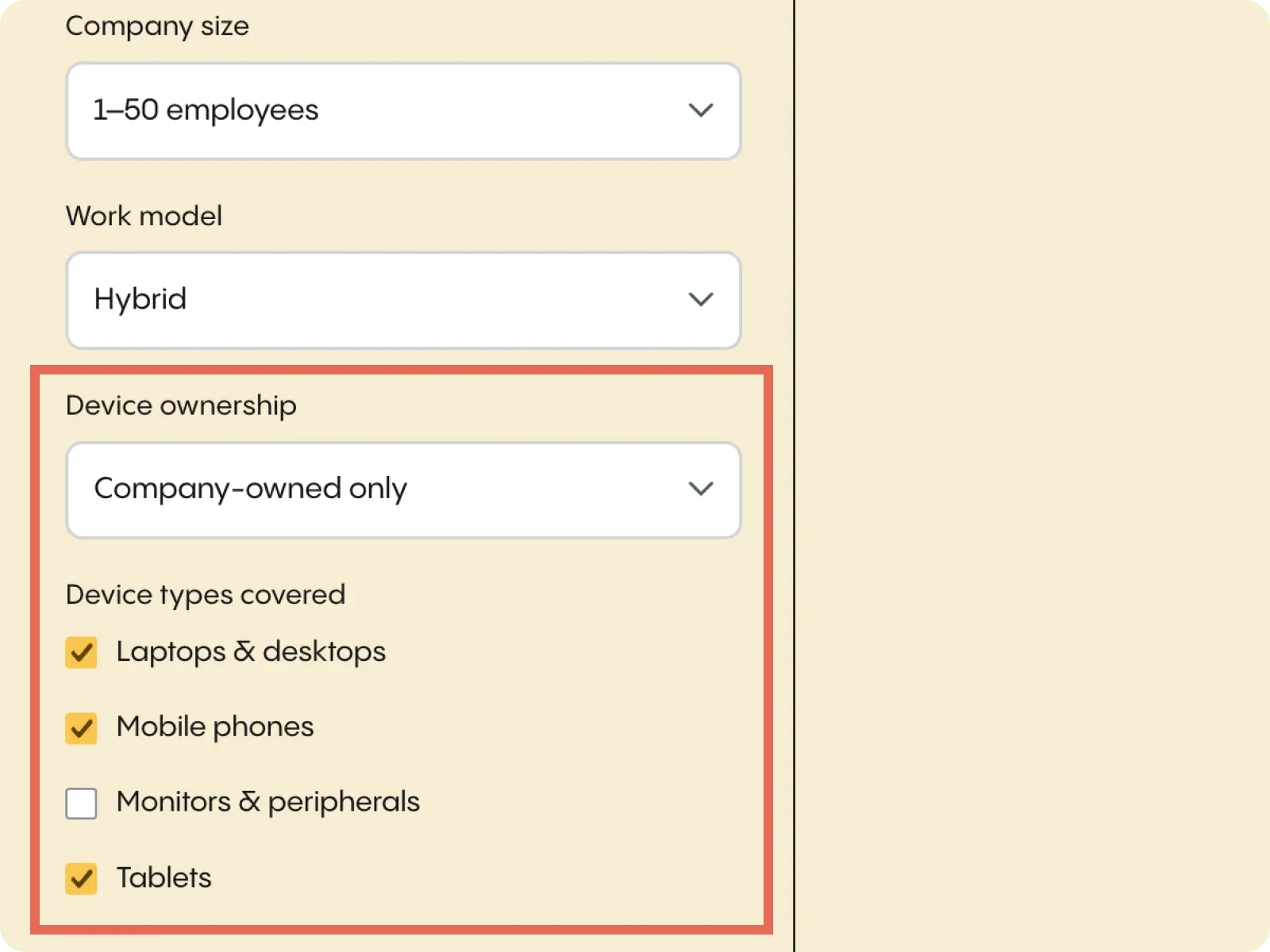
Next, choose how you approach device ownership in your asset management process, with the three options being company-owned devices only, BYOD only, and both company-owned and BYOD.
If your lifecycle management asset inventory strictly consists of devices you provide to your team and employees never use their own devices, choose company-owned only.
If all of the devices in your IT network are employee-owned and you don’t provide any physical assets to your team, choose BYOD.
Or, if you use a mix of the two, where some devices are company-owned, and some are your employees’ personal devices, choose company-owned and BYOD.
For Device Types Covered, simply select all of the types of hardware assets that your organization uses in your IT inventory.
Here, you can choose from laptops and desktops, mobile phones, monitors and peripherals, and tablets. Be sure that you only select the devices that your business actively uses or plans on using.
3. Choose Compliance Requirements
Security and compliance are of the utmost importance for nearly all of today’s companies. But some organizations are part of industries with extremely strict compliance standards and legal requirements regarding data collected and personal information.
For instance, those in the healthcare industry collect a large volume of personally identifiable information through patient records and therefore carry a high security risk.
Similarly, those in finance often have access to highly sensitive information found in business transactions and frequently rely on tracking technologies and unique device identifiers. This means they tend to carry a high risk and are strictly regulated by governmental jurisdiction.
They may require user consent when storing personal data and need to make regular audits.
And, in some cases, they may use advanced security strategies like red teaming AI agents in their asset management practice to proactively identify potential vulnerabilities before cybercriminals have the chance to exploit them.
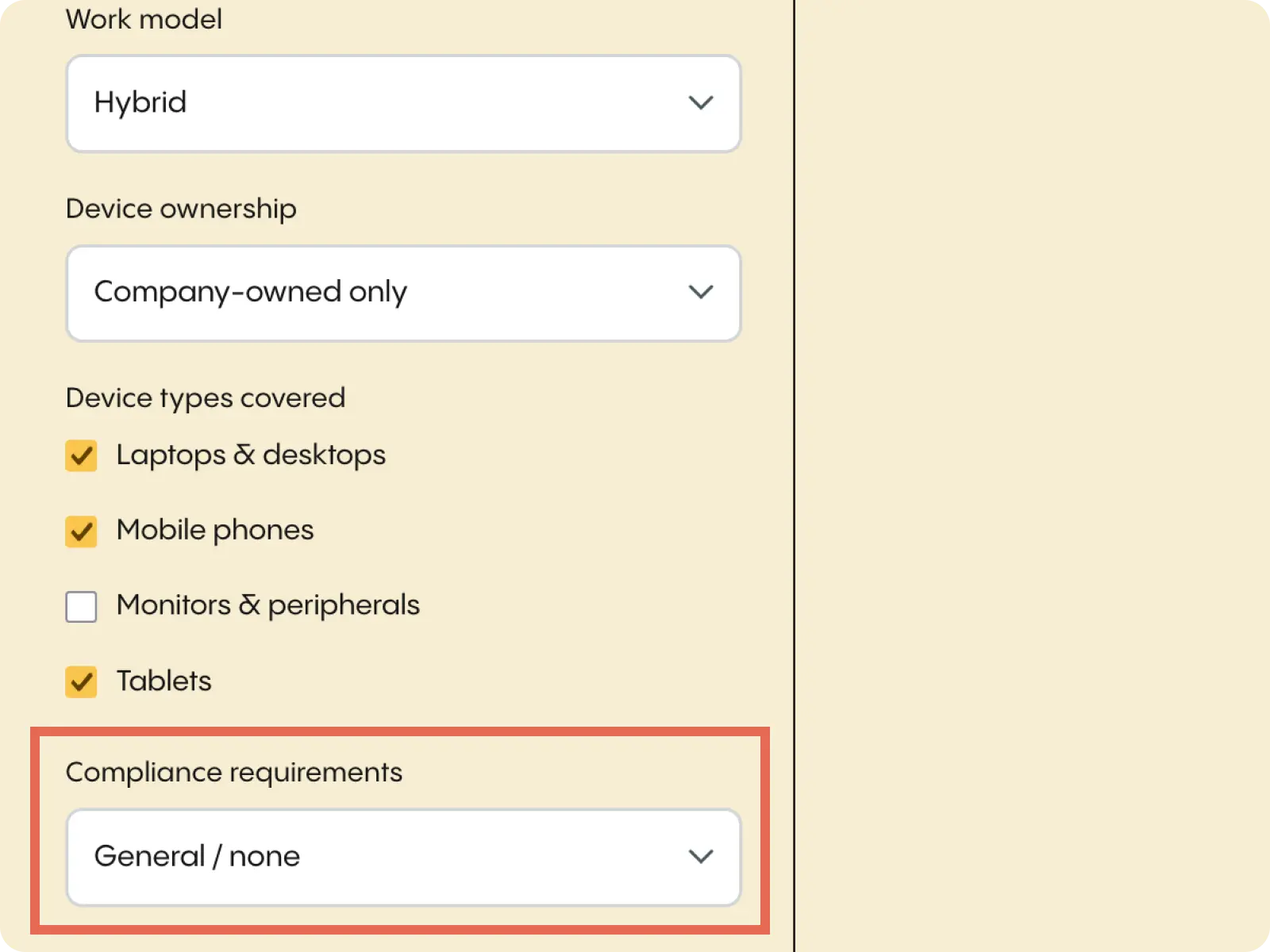
The final step for filling out allwhere’s asset management policy template is to select any specific compliance standards your company has (if any).
There are four options here.
- General/none
- SOC 2
- HIPAA
- GDPR
At this point, you’ve filled out all of the necessary data needed for regulatory requirements, as well as all of the information to flesh out your asset management policy.
4. Generate Your Policy
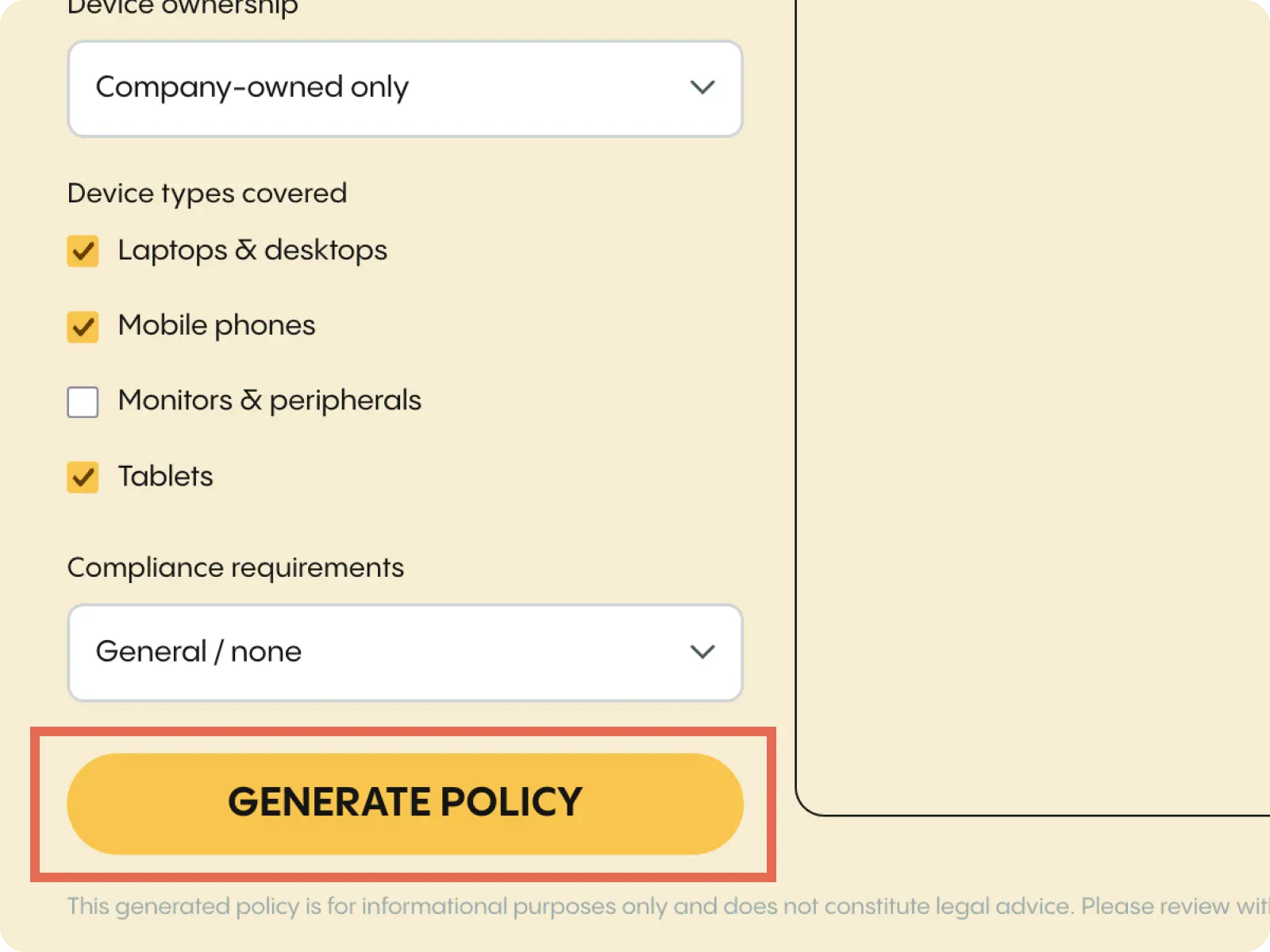
From here, simply click “Generate policy” at the bottom, and allwhere will produce a fully customized IT asset policy for you.
On it, you’ll find sections that cover:
- Purpose and scope
- Asset assignment and procurement
- Service provider workflow information
- Acceptable usage of company assets
- Security requirements
- Diagnostic data collection methods
- Asset disposal process
- What warrants policy violations
If you use a fully remote or hybrid work model, you’ll also find sections for a remote and distributed workforce, device return, and offboarding.
And if your organization has specific compliance requirements or operates under a personal data protection law, there will be a section for this as well.
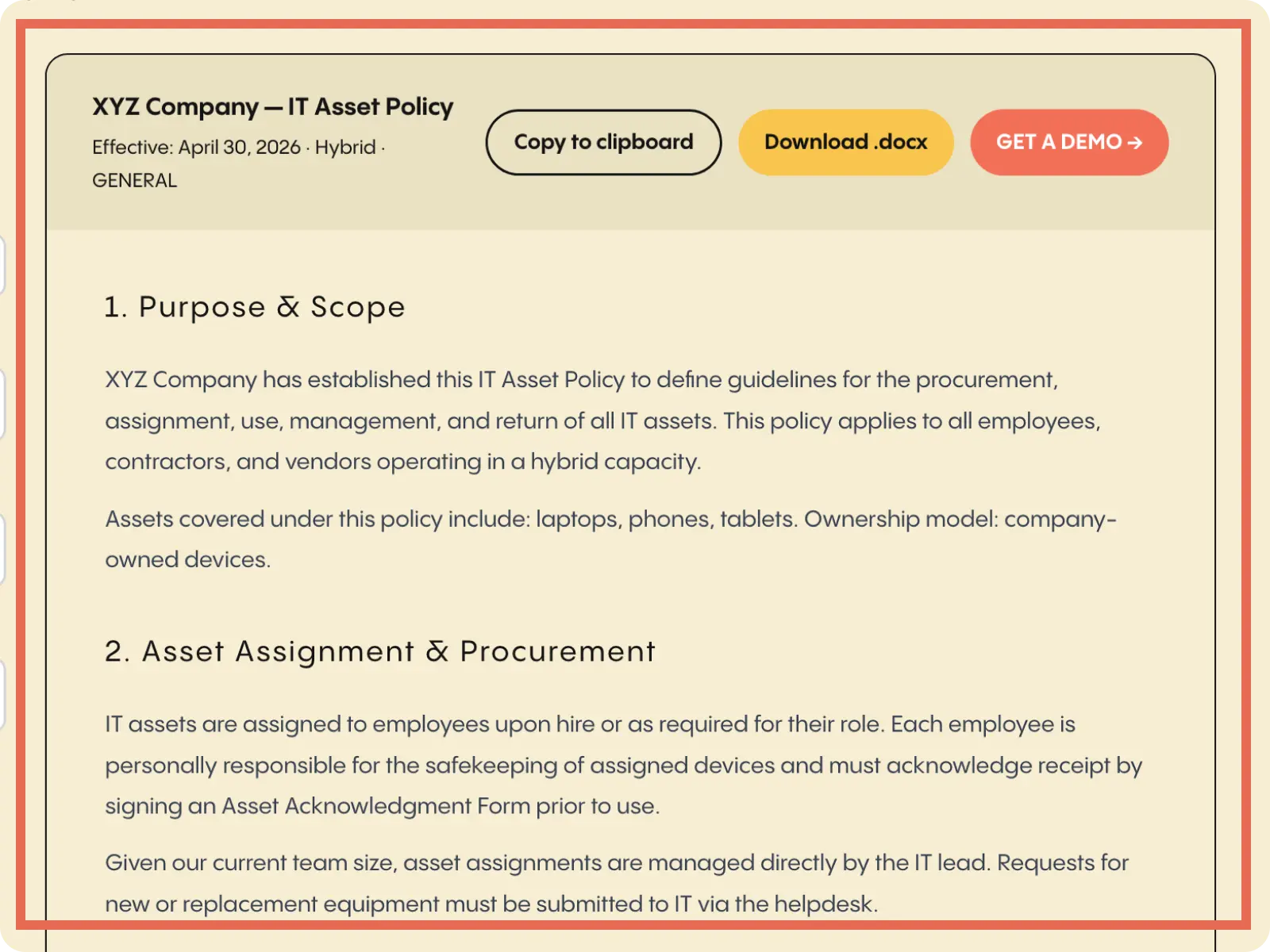
5. Copy to Clipboard or Download
The final step for using this comprehensive tool is to either copy your IT asset policy or download it as a DOCX file for Microsoft Word.
From there, you’re free to edit and further customize your policy as you see fit, and put the finishing touches on it. Or, if you’re satisfied with the original version, you can simply leave it as is and use it to guide your asset lifecycle management.
And that’s it. You’ve now got a fully fleshed-out asset management policy that covers end-to-end processes and workflows.
