Laptop depreciation calculator

Laptop depreciation calculator

Model book value and plan refresh cycles across your fleet. Compare straight-line, declining balance, and MACRS methods in one view.

Book value
Depreciated
Asset age
Replace by

Book value over time

Book value Replacement threshold

Straight-line

Spreads depreciation evenly across the asset's useful life. Predictable and best for fleet-wide budget planning.

Stop guessing your refresh cycle

allwhere tracks purchase dates, manages global deployment, and automates retrieval — so you replace devices on schedule, not after they fail.

Book a demo

How the math works: Straight-line and declining balance prorate monthly from purchase date. MACRS 5-year uses the IRS half-year convention (20%, 32%, 19.2%, 11.52%, 11.52%, 5.76%) and ignores salvage value — the schedule is fixed regardless of useful life input. This tool is for planning purposes; consult a tax professional for filings.

redeploy

What to Know About allwhere’s Laptop Depreciation Calculator

Like any other IT asset, a laptop gradually loses value over time based on its annual depreciation rate. So it’s important to understand how much value this computer equipment has over the depreciation period and when it will likely need to be replaced.

allwhere’s laptop depreciation generator offers a fast, easy way to understand all the critical details as a laptop ages.

By entering some basic information like purchase price, purchase date, and useful life, you can instantly get a bird’s-eye view of what to expect.

That way, you can better predict how the book value of depreciable property changes over time, efficiently plan for laptop replacements, and get a tighter grip on your overall IT budget, alongside tools like a compound interest calculator.

Here’s how to use it step-by-step.

How to Use allwhere’s Laptop Depreciation Calculator

1. Enter the Purchase Price and Purchase Date

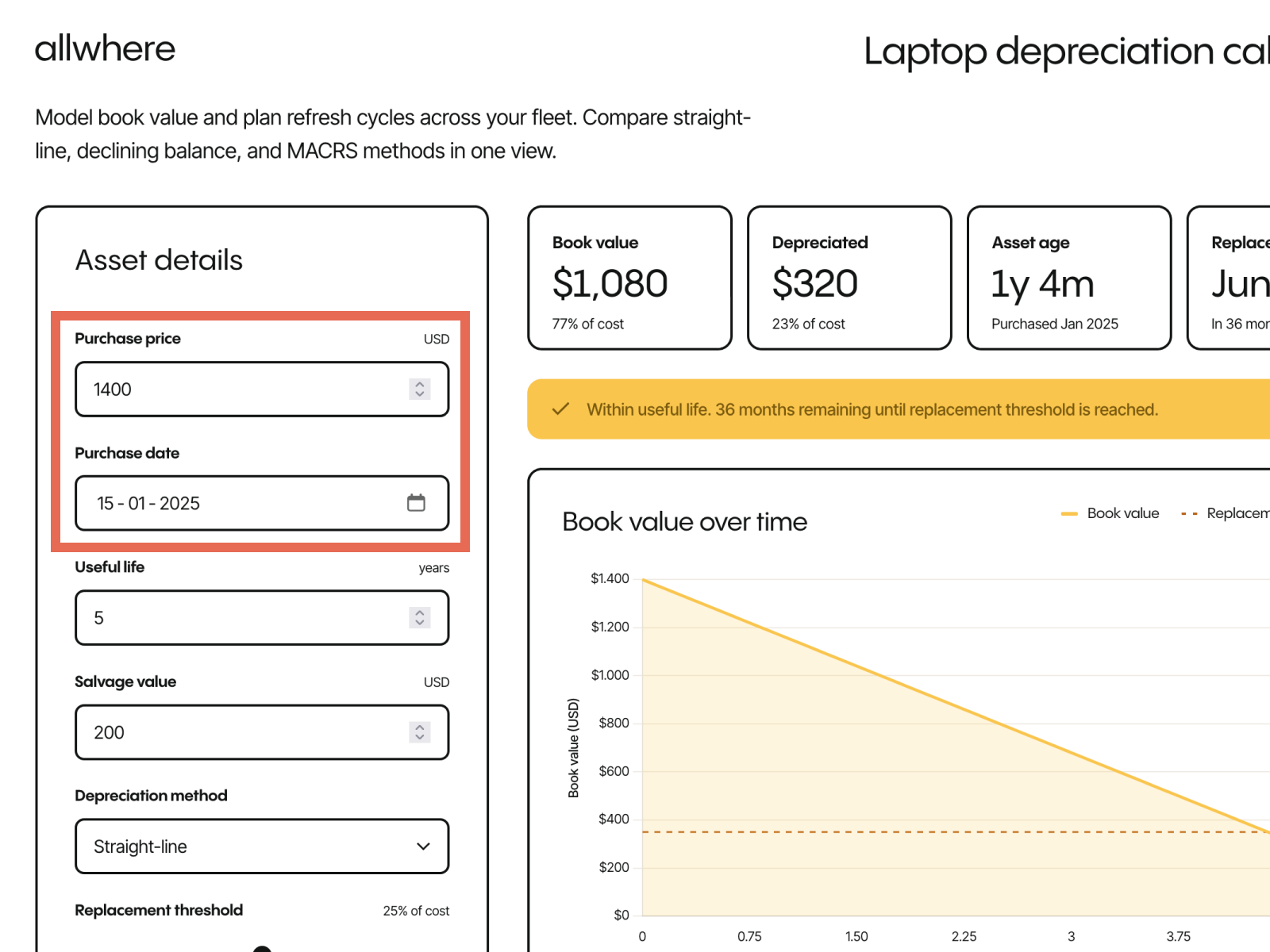
First, you’ll want to input how much you paid for the laptop initially, along with the purchase date, which is especially important if you’re calculating a partial year deduction.

Say, for example, you purchased an Apple MacBook for $1,400 in mid-January 2025. You’ll want to enter that information above.

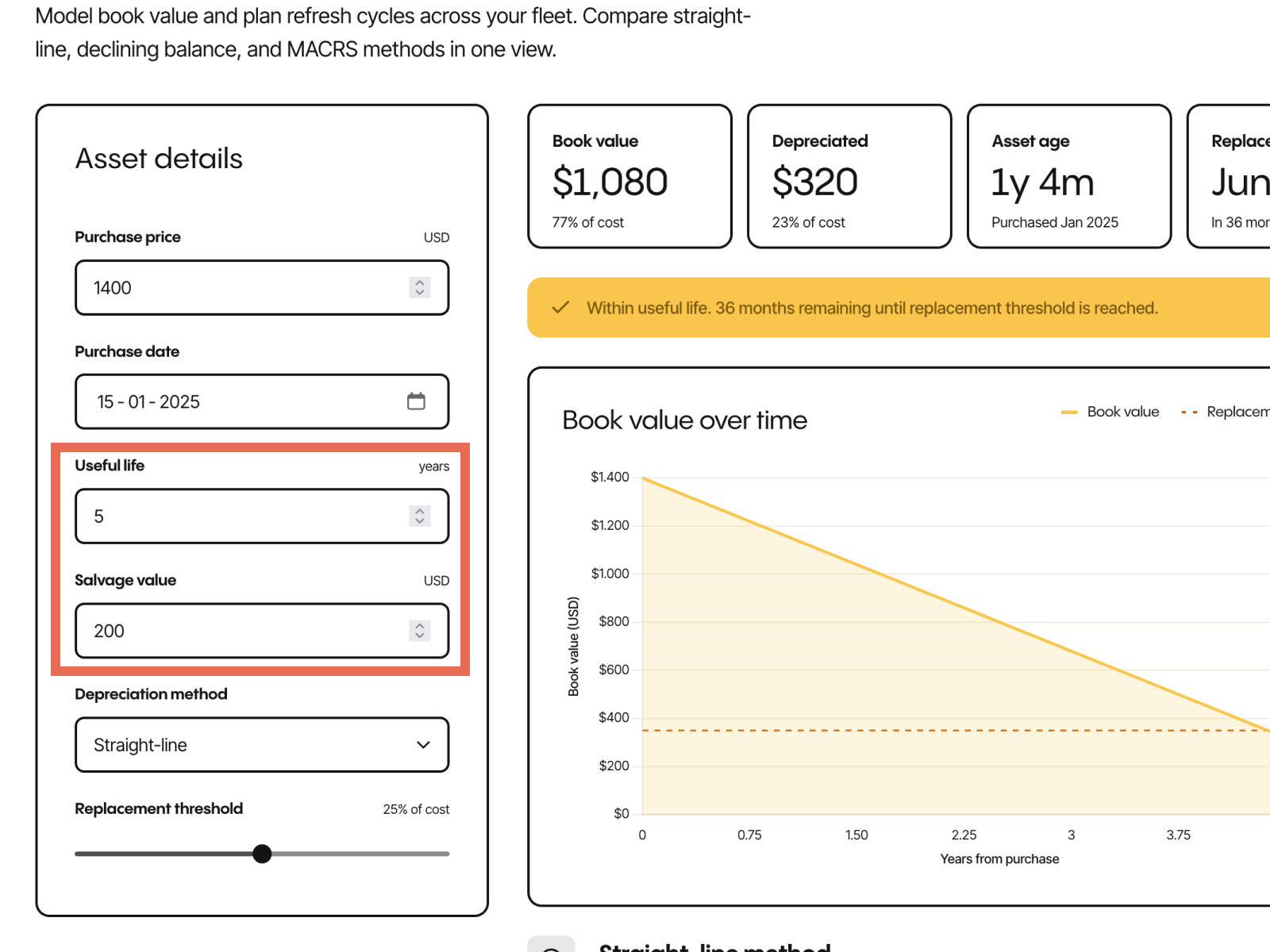
2. Enter the Useful Life and Salvage Value

Next, you’ll want to enter the laptop's useful life and the expected salvage value, which is closely tied to the resale value once a laptop is no longer usable in your operations.

For this example, you can typically expect to get five years plus out of an Apple MacBook, so we’ll choose five years for the useful life. If, however, you’re dealing with a Windows laptop, that number will likely be lower.

And for salvage value, we’ll go with $200, which is a reasonable ballpark. However, some laptops may be worth more or less depending on maintenance.

When deciding what numbers to enter in these fields, research the specific device you’re using.

Then you can lean toward conservative numbers if you anticipate a shorter useful life or lower residual value. Or if you’re looking to maximize your assets and get the most life out of them, you could choose larger numbers.

In general, leaning slightly conservative should be your best bet for laptop inventory.

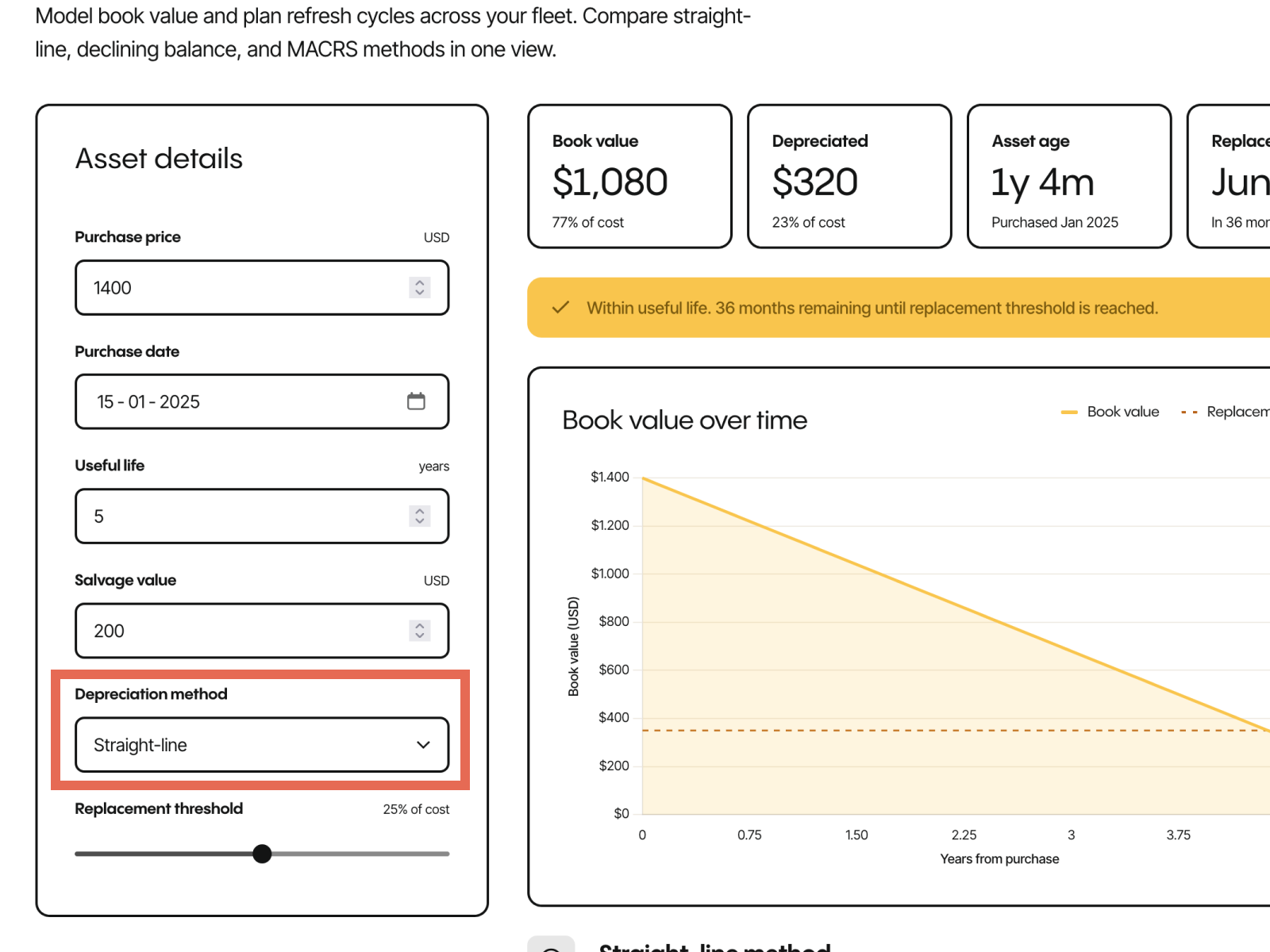
3. Choose Your Depreciation Method

At this point, it’s time to select which depreciation method you want to use for the laptop, which is important for maximizing your tax deduction. allwhere’s depreciation calculator offers three different equipment depreciation methods.

One is the straight line depreciation calculator, which is the most straightforward and predictable laptop depreciation rate, where the same annual depreciation value is applied each year. This tends to be the most popular depreciation schedule for most companies.

The second option is the declining balance method, where there’s an accelerated depreciation expense at the beginning of laptop ownership. Then, as time passes, the annual depreciation amount declines in the later years.

If you prefer a higher depreciation deduction upfront for laptops that quickly lose value, the declining balance method often makes sense. Or, if your business anticipates quick refreshes on laptops, declining balance depreciation can be a good calculation method.

Note that if you purchase large quantities of laptops for employees or a data center, you may want to explore the double declining balance method, the Section 179 deduction, or bonus depreciation opportunities.

The third and final asset depreciation calculator option is the Modified Accelerated Cost Recovery System (MACRS), which uses an IRS-defined schedule. The fixed annual percentages break down as follows:

  • Year one - 20% depreciation rate
  • Year two - 32%
  • Year three - 19.2%
  • Year four - 11.52%
  • Year five - 11.52%
  • Year six - 5.76%

If you need your IT asset depreciation method to align with your tax filings for financial reporting, this is a smart option.

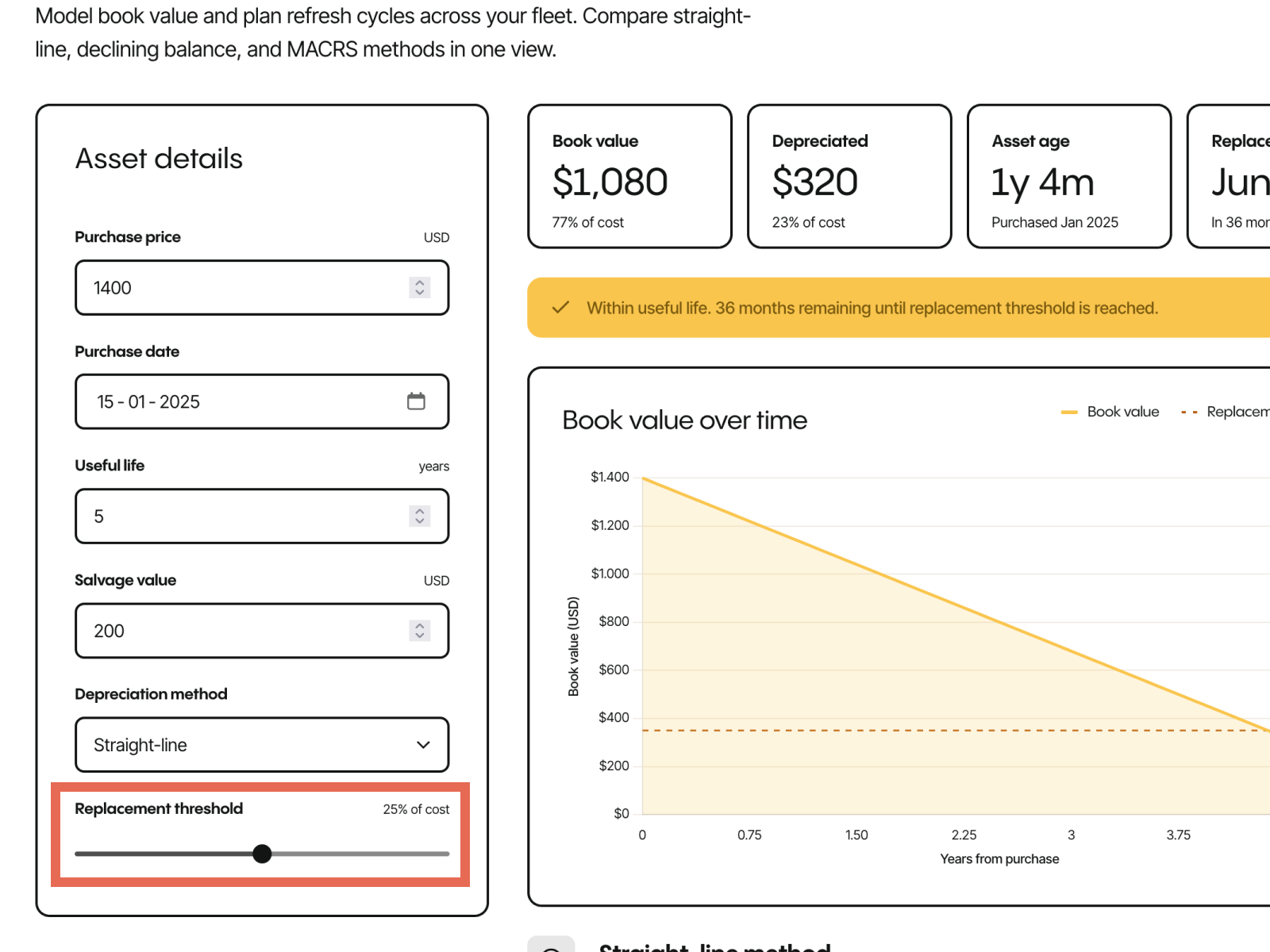
4. Select Your Replacement Threshold

The final asset detail to select is the replacement threshold, which is used to determine when it may no longer be financially viable to continue using a laptop for operations.

Once a laptop’s remaining book value drops below the percentage chosen on your replacement threshold, it’s likely time for it to be replaced.

If, for instance, you had an Apple MacBook with an original value of $1,400 and you selected 25%, once the value dropped below $350, it would likely qualify for replacement.

For this tool, the lowest replacement threshold option is 0%, while the largest option is 50%. Note that most companies usually stick with the 20 - 30% range.

5. Check Your Custom Results

By now, you should have entered information for six fields.

  • Purchase price
  • Purchase date
  • Useful life
  • Salvage value
  • Deprecation method
  • Replacement threshold

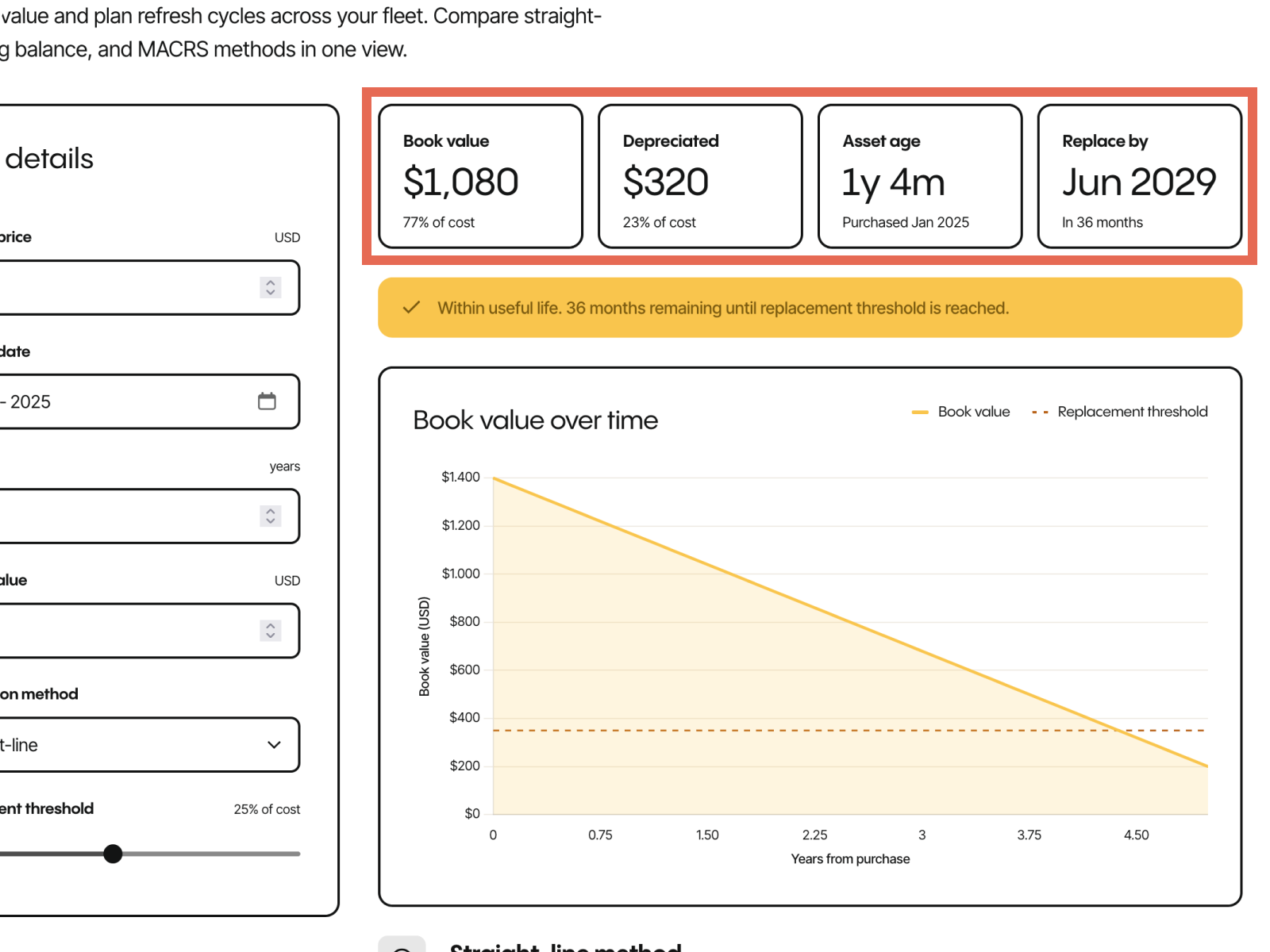
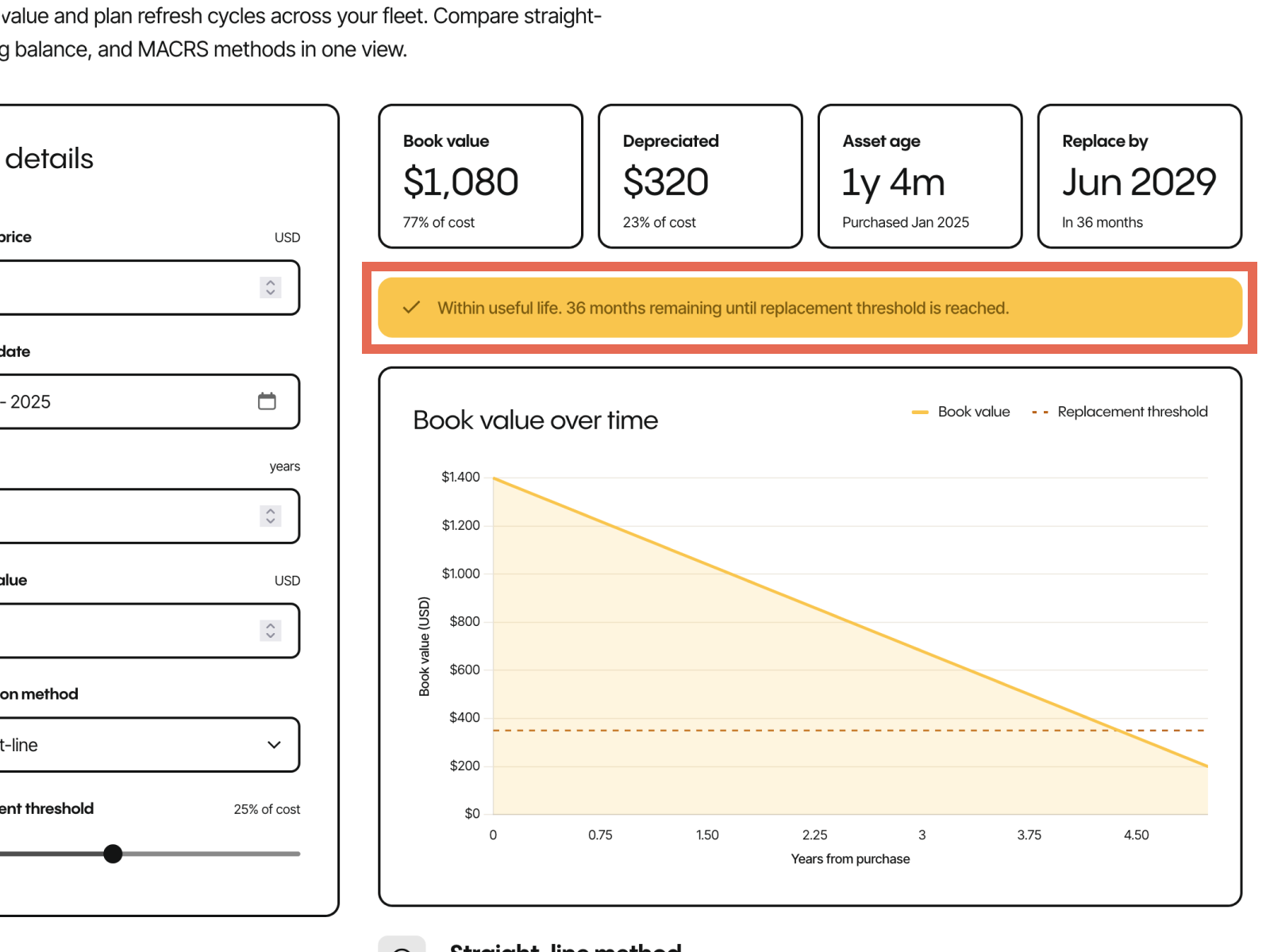
Once you’ve done that, the asset depreciation calculator will automatically crunch all of your total depreciation cost data and provide you with concrete numbers at the top.

Here, you’ll find:

  • Book value (also known as written down value)
  • Accumulated depreciation
  • Asset age
  • When to replace a laptop computer to avoid technological obsolescence

Just below that, you’ll see whether or not a laptop is within its useful life or not. You’ll also see how many months remain until a replacement threshold is reached. For this example, there are still 36 months left.

6. Check the Book Value Over Time

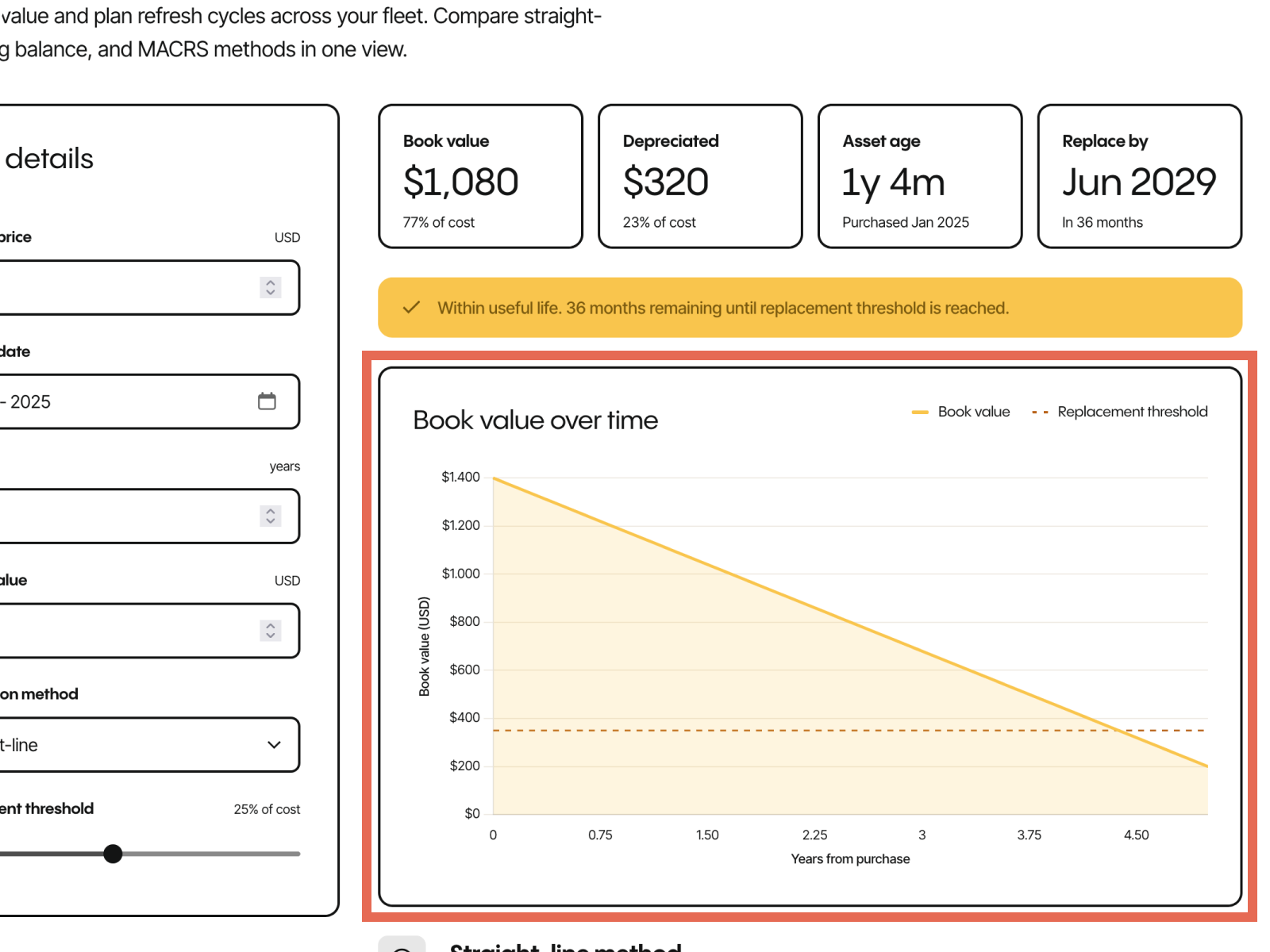
The final step is to analyze your custom graph for book value over time, along with the replacement threshold.

Here, you can see exactly how much the book value decreases, moving in increments of 0.75 years. In this example, the book value starts at $1,400. After one year, it’s around $1,160. After two years, it’s around $920, and so on.

And by looking at the red dotted line, you can see exactly when the replacement threshold will occur and what the resale value will be. For this example, it’s around 4.4 years, with the resale value being around $350.

Illustration of three U.S. cities and the animated shipping box running through all three.

Ready to simplify your entire device lifecycle?

Eliminate manual work, gain real-time visibility, and keep costs predictable — all in one platform. Let allwhere handle the logistics so your team can focus on what matters.

GET STARTED